
Access
Tor Browser access & session reference
Page intent: install path, pre-login checklist, DDoS and anti-phishing gates, registration and login UI captures. Copy hosts from Links only after the paste-in verifier passes.
Recommended order
- Copy a v3 host from Links (21+ on this browser) and run the paste-in verifier on anything that did not come from our table.
- Install or update Tor Browser from the official bundle — open the onion only inside that profile.
- Work through the gates and checklist sections below before username, password, or PIN.
- After PGP 2FA, confirm your personal anti-phishing phrase on every authenticated page.
When Tor is slow or blocked
Congestion and DDoS against hidden services show up as long queues — not as a signal to switch to a random onion from social media. Stay on a verified host from Links and wait through the gate when possible.
If your ISP blocks Tor, use official bridge configuration from the Tor Project documentation inside Tor Browser settings — not third-party “Tor VPN” installers on the clear web. Bridges improve reachability; they do not replace mirror verification.
Update Tor Browser when prompted. Outdated builds break v3 compatibility and weaken security fixes you need before handling credentials.
Install & first open
- Install Tor Browser from the official Tor Project distribution — not from a random “Tor gateway” page on the clear web.
- Set Security Level to Safest or Standard depending on your trade-off; core market functions work without JavaScript on many flows.
- Copy a v3 host from Links after 21+ confirm — use copy buttons, not hand-typing 56 characters.
- Read the full URL bar before Enter; expect DDoS queue, CAPTCHA, or anti-phishing screens on legitimate entry.
- Disable clearnet “Tor proxies” and browser extensions that rewrite .onion requests — they break hostname guarantees.
If Tor Browser warns about an unknown onion or certificate oddities on a host that failed our verifier, stop — do not override warnings to “try anyway.”
Before login — manual checks
Run this list after the hostname matches Links and before you submit credentials. Clones can replicate login art; they cannot replicate your phrase after a real PGP 2FA session.
- Compare all 56 characters with the directory table and operator-signed mirror text verified with GnuPG when hosts rotate.
- Complete PGP 2FA login and locate your anti-phishing phrase on the page — not on a marketing screenshot.
- Do not rely on page design or CAPTCHA skin alone — both can be copied by phishing kits.
- If checks pass, bookmark the working mirror from Tor Browser, not from a search result or DM.
- If checks fail, close the tab and do not enter credentials — fetch a fresh row from Links instead.
Anti-phishing CAPTCHA (reference)
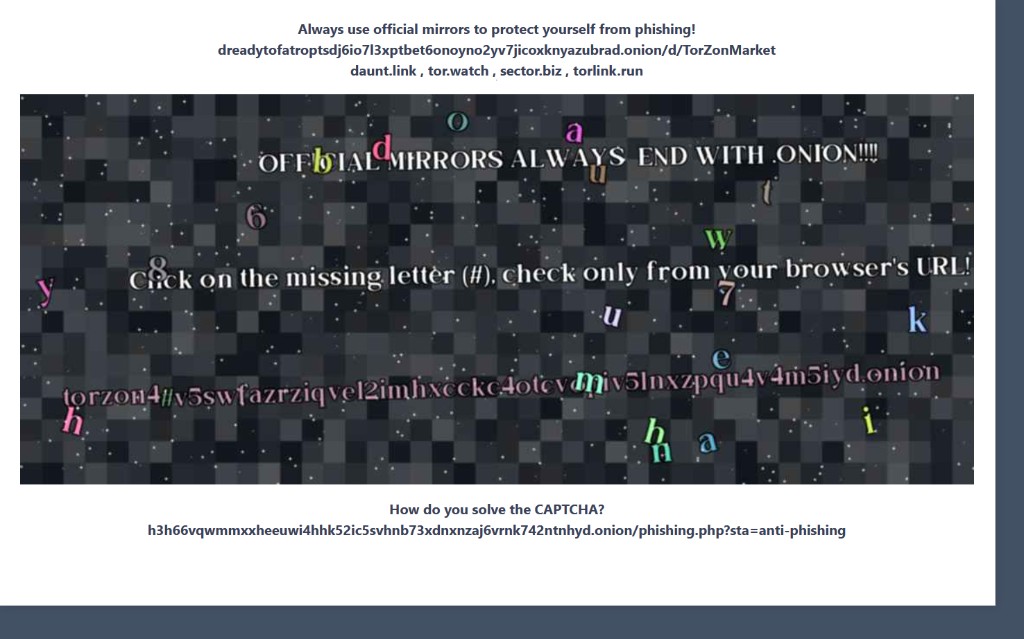
What you see before credentials
Real sessions often start with an Anti-DDoS gateway or traffic queue — not an instant password form on first paint from an untrusted paste.
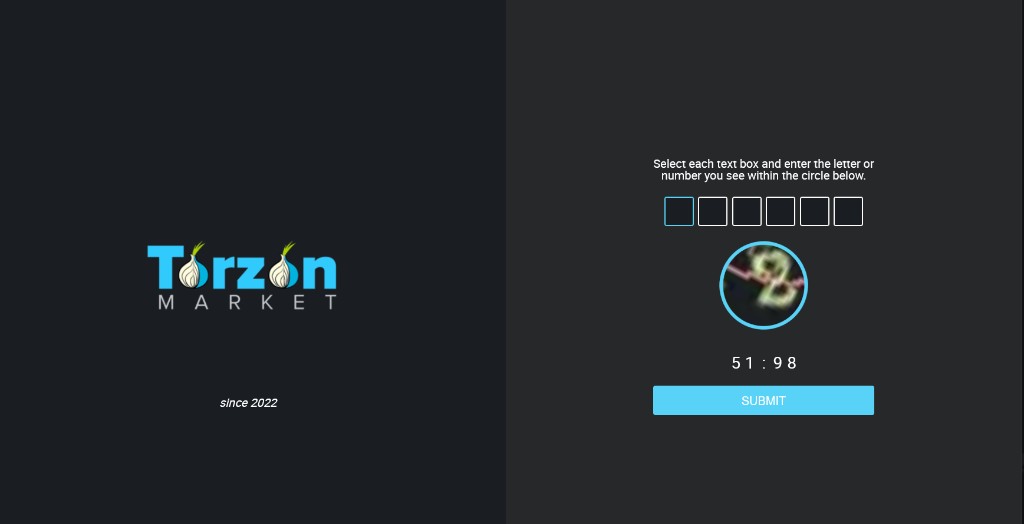
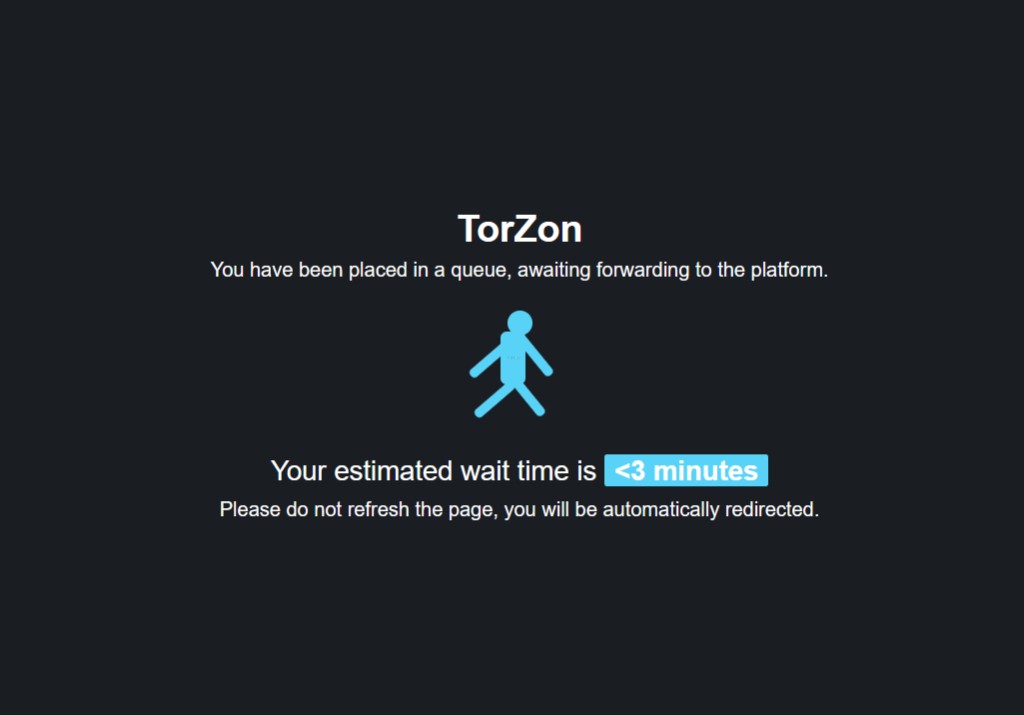
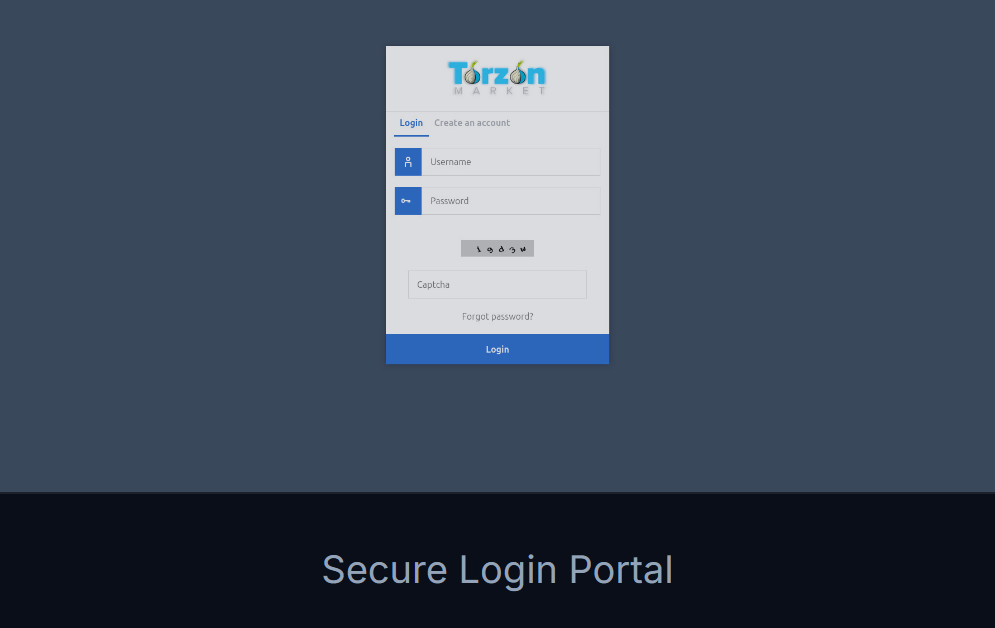
Queues and captchas are normal during DDoS. A clone that skips straight to a password form on first paint from an unlisted paste is not “faster” — it is a red flag. When in doubt, re-copy from Links and reload.
Registration & login UI
Username, personal phrase, password, confirm password, PIN, and captcha on create; username, password, captcha on login. Phrase and PIN are not stored on torzonlinks.com — only on the verified onion.
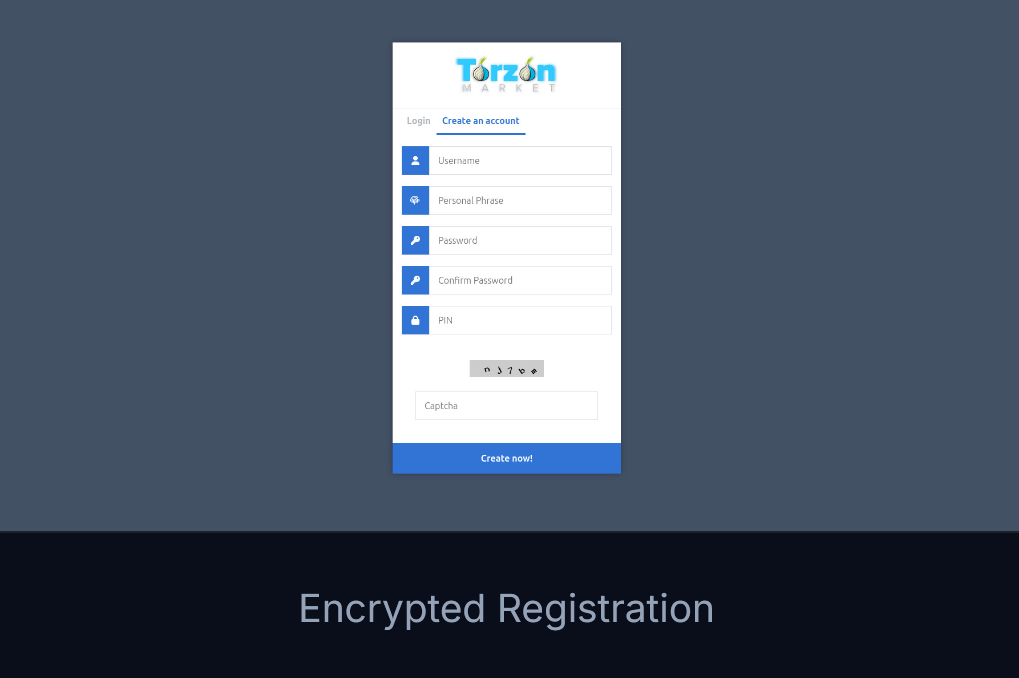
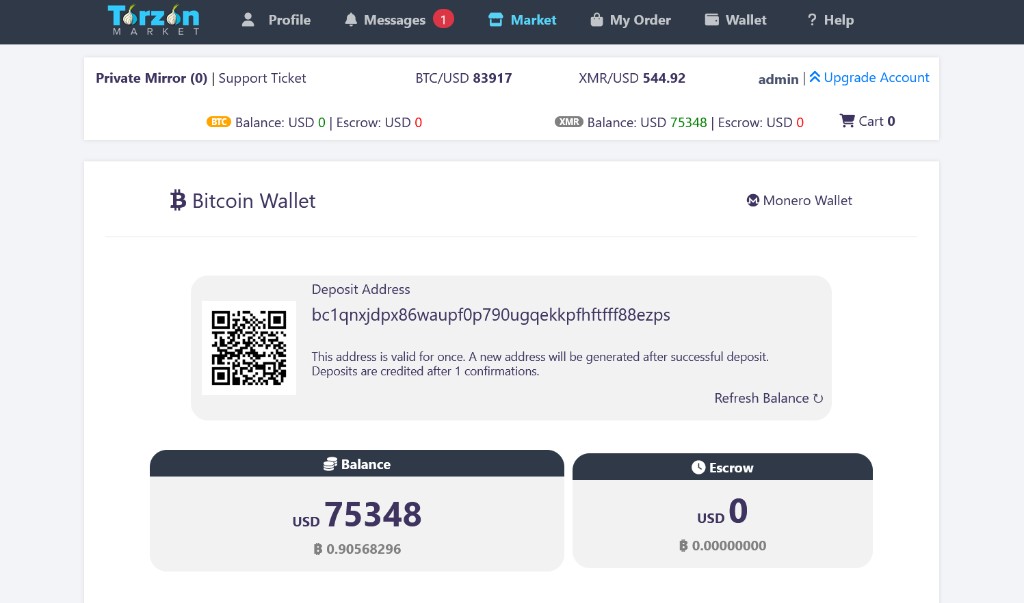
Registration creates the phrase, login PIN, and withdrawal PIN on the verified onion only. torzonlinks.com never stores or resets those values — support impersonators asking for them on clearnet are phishing.
Session habits
- One profile — use the same Tor Browser install for market access; avoid parallel “test” browsers with stale bookmarks.
- Log out on shared machines — close Tor Browser entirely; do not leave tabs pinned on .onion hosts.
- Phrase every visit — if the anti-phishing line is missing after login, treat the session as hostile even if the cart loads.
- Mail encryption — enable PGP for vendor threads; paste keys only on the verified host.
OPSEC checklist (directory)
- Bookmark the working onion inside Tor Browser only after phrase checks pass.
- Store the 12-word mnemonic offline — directory staff cannot reset accounts.
- Enable PGP 2FA before high-volume mail or vendor work.
- Keep withdrawal PIN distinct from login password and login PIN.
- Ignore DMs pushing “new official mirrors” without signed operator text matching Links.
- Review the eight hostname checks on Links whenever you paste from a new source.
Payments and escrow timing: Wallet. Market background and vendor bonds: About.
Mnemonic & account recovery
Registration on the verified onion produces a mnemonic backup — store offline on paper or air-gapped storage. torzonlinks.com never displays or resets mnemonics; anyone asking for yours on clearnet impersonates support.
Lost mnemonic with locked account is an operator-side recovery path inside the market, not through this directory. Prepare backups before your first deposit.